1. Phiên bản Tiếng Việt
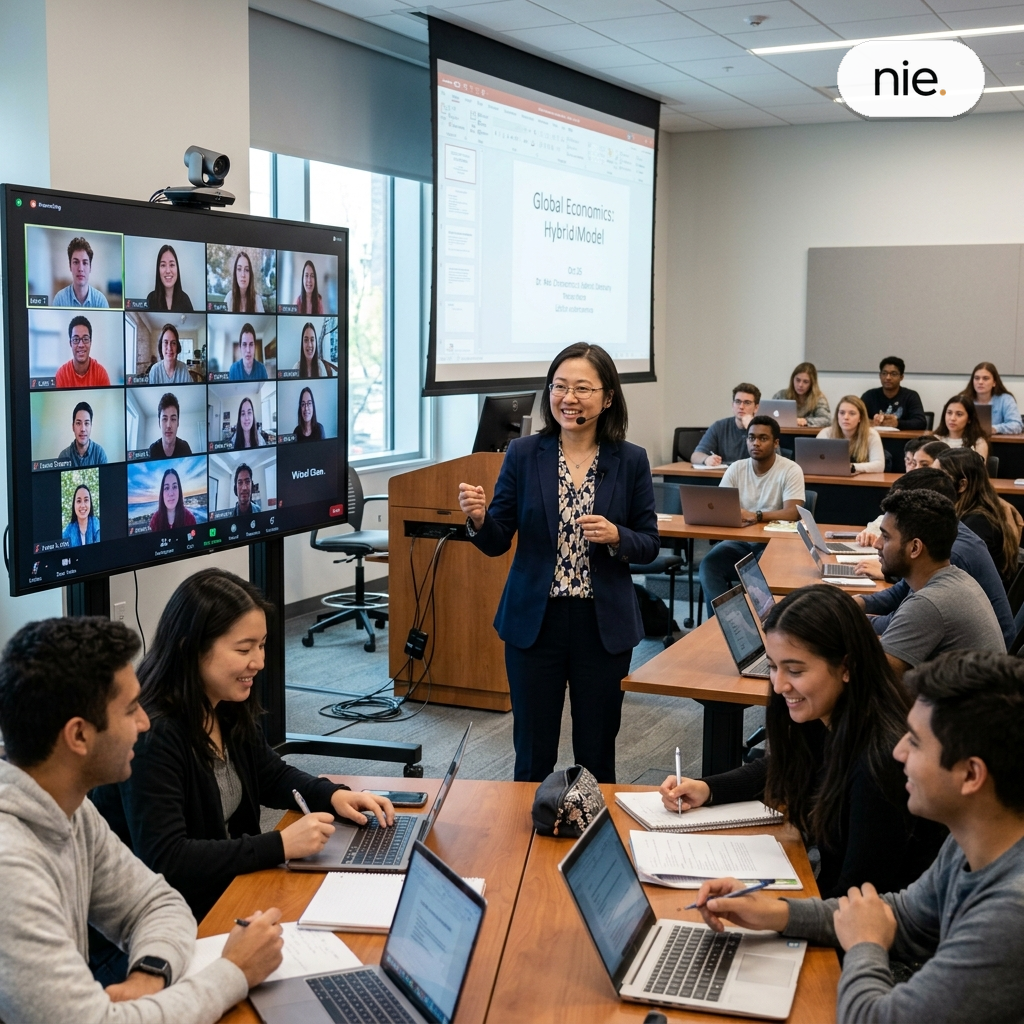
Giảng viên đại học thường rơi vào tình cảnh oái oăm: giáo án nằm trên máy tính cá nhân, nhưng bài thuyết trình lại cần chỉnh sửa gấp ngay trên điện thoại khi đang di chuyển. Bạn mất 10 phút để tìm file, loay hoay gửi email cho chính mình, rồi nhận ra phiên bản đó đã cũ. Sự đứt gãy trong luồng dữ liệu này không chỉ gây ức chế mà còn triệt tiêu tính chuyên nghiệp. Nhiều người tin rằng lưu trữ đám mây là phép màu, nhưng thực tế, nếu không có quy trình quản lý nhất quán, đám mây chỉ là một đống lộn xộn kỹ thuật số đầy rủi ro. Bạn đang kiểm soát dữ liệu, hay dữ liệu đang kiểm soát bạn?
Việc ép buộc bản thân sử dụng nhiều nền tảng cùng lúc không phải là sự chuẩn bị, đó là sự tự sát về mặt quản trị thời gian. Đồng bộ dữ liệu đa thiết bị yêu cầu một tư duy logic hơn là kỹ năng bấm nút. Khi bạn cập nhật một file, mọi thiết bị phải phản ứng tức thì. Nếu không, sự tin tưởng vào công nghệ sẽ đổ vỡ ngay tại phòng học. Hãy nhìn thẳng vào thực tế: nếu hạ tầng lưu trữ không ổn định, mọi công sức soạn giảng chỉ là công dã tràng.
Bản chất của việc đồng bộ hóa dữ liệu
Đồng bộ dữ liệu đa thiết bị không đơn thuần là sao chép file. Đó là quá trình thiết lập một đường truyền liên tục giữa ổ cứng máy tính, thiết bị di động và máy chủ đám mây. Khi bạn cài đặt OneDrive hoặc Google Drive trên cả PC và điện thoại, bạn đang tạo ra một bản sao song hành. Điểm mấu chốt là cơ chế ghi đè thông minh (delta sync). Thay vì tải lên lại toàn bộ tệp tin hàng gigabyte, hệ thống chỉ đẩy đi những thay đổi nhỏ nhất bạn vừa thực hiện. Đây là kỹ thuật tiết kiệm băng thông và thời gian quý báu.
Tuy nhiên, sự phản hồi của máy chủ không phải lúc nào cũng tức thời. Tốc độ đường truyền, độ trễ của mạng di động và xung đột phiên bản là những con quái vật luôn rình rập. Nếu bạn tắt máy tính ngay khi tệp tin chưa kịp upload xong, file đó sẽ bị khóa hoặc tạo ra bản sao lỗi (conflict files). Cảm giác thấy hàng loạt tệp tin thêm đuôi “Copy” trong thư mục là một trải nghiệm không giảng viên nào muốn gặp lại.
So sánh giữa OneDrive và Google Drive cho giảng viên
| Tính năng | OneDrive (Hệ sinh thái Microsoft) | Google Drive (Hệ sinh thái Google) |
|---|---|---|
| Tích hợp Office | Tuyệt đối, chỉnh sửa mượt mà trên Word/PowerPoint | Cần chuyển đổi định dạng, đôi khi lỗi font |
| Khả năng tìm kiếm | Trung bình, phụ thuộc vào cấu trúc thư mục | Vượt trội nhờ AI của Google |
| Chi phí ẩn | Gói Microsoft 365 đắt hơn nhưng đi kèm phần mềm | Tốn thêm chi phí nếu vượt dung lượng miễn phí |
Quy trình thiết lập đồng bộ hóa an toàn
Sắp xếp thư mục logic trên PC trước khi bật tính năng Sync.
Thiết lập “Files On-Demand” để tránh đầy bộ nhớ điện thoại.
Dọn dẹp tệp tin rác và xung đột phiên bản hàng tuần.
Thách thức và giải pháp thực tế
Vấn đề lớn nhất của việc đồng bộ hóa chính là sự chủ quan. Nhiều người cho rằng khi dữ liệu đã lên đám mây thì nó đã an toàn. Hoàn toàn sai. Ransomware có thể lây lan từ PC lên đám mây chỉ trong vài giây. Nếu file gốc bị mã hóa, bản sao trên điện thoại cũng trở thành rác. Giải pháp duy nhất là nguyên tắc 3-2-1: 3 bản sao, 2 loại lưu trữ khác nhau, 1 bản lưu trữ tách rời khỏi internet.
Một trở ngại khác là sự xung đột giữa các ứng dụng chạy nền. Khi cài đặt cả OneDrive và Google Drive, tài nguyên hệ thống bị chia cắt. Máy tính nóng lên, pin điện thoại tụt không phanh. Hãy chọn một nền tảng chính để lưu trữ tài liệu giảng dạy và chỉ dùng nền tảng thứ hai cho việc chia sẻ nhanh. Đừng ôm đồm.
FAQ – Câu hỏi thường gặp
Tại sao dung lượng OneDrive trên máy tính chiếm nhiều bộ nhớ dù tôi đã đồng bộ lên mây?
Điều này xảy ra do chế độ lưu trữ cục bộ. Hãy chuột phải vào thư mục OneDrive, chọn “Free up space”. Hệ thống sẽ chỉ giữ lại các tệp tin dưới dạng shortcut, chỉ tải về khi bạn mở file, giúp giải phóng hoàn toàn dung lượng ổ cứng.
Có nên đồng bộ thư mục Desktop và Documents không?
Nên, nhưng cần cẩn thận. Việc này giúp backup toàn bộ dữ liệu quan trọng, nhưng nếu bạn có các tệp tin tạm (temp files) dung lượng lớn, nó sẽ làm chậm hệ thống. Hãy loại trừ các thư mục tệp tin tạm ra khỏi thiết lập sync.
Làm thế nào để tránh việc file bị ghi đè nhầm lẫn khi làm việc nhóm?
Sử dụng tính năng “Version History” (Lịch sử phiên bản). Cả OneDrive và Google Drive đều ghi lại các thay đổi cũ. Khi có sai sót, bạn chỉ cần khôi phục lại phiên bản trước đó trong vài cú click chuột.
Kết luận lại, sự đồng bộ hóa dữ liệu không phải là đích đến, mà là một thói quen vận hành. Nếu bạn vẫn đang vật lộn với những thư mục hỗn loạn, đã đến lúc thay đổi cách tiếp cận hạ tầng công nghệ. Đối với những tổ chức giáo dục hay cá nhân cần sự chuyên nghiệp tuyệt đối, việc xây dựng một hệ thống dữ liệu tinh gọn là ưu tiên hàng đầu. Hộ kinh doanh Nguyễn Thông, thông qua các giải pháp công nghệ như thiết kế website chuyên dụng cho giảng viên, cung cấp bản quyền phần mềm chính hãng và tư vấn e-learning, luôn sẵn sàng hỗ trợ bạn tối ưu hóa luồng công việc, giúp mỗi giảng viên tập trung hoàn toàn vào sứ mệnh truyền tải tri thức thay vì phải đối đầu với các lỗi vặt kỹ thuật thường nhật.
2. English Version
University lecturers often find themselves in an awkward predicament: their lesson plans are locked away on a desktop PC, yet a sudden, urgent change is needed on a slide deck while they are on the move. You spend ten minutes hunting for the file, frantically email it to yourself, only to realize you’ve pulled up an outdated draft. This fragmentation in data flow isn’t just frustrating; it chips away at your professional polish. While many view cloud storage as a digital panacea, the reality is that without a consistent management protocol, the “cloud” is nothing more than a disorganized, high-risk heap of digital debris. Are you truly in control of your data, or is your data controlling you?
Forcing yourself to juggle multiple platforms simultaneously isn’t strategic preparation—it’s time management suicide. Synchronizing data across devices requires logical foresight rather than just technical prowess. When you update a file, every device in your ecosystem must reflect that change instantly. If it doesn’t, your trust in technology will crumble right in front of your students. Let’s face the facts: if your storage infrastructure is unstable, all the hours poured into curriculum design are essentially wasted effort.
The Anatomy of Data Synchronization
Multi-device data synchronization is far more than simple file copying. It is the process of establishing a continuous, real-time bridge between your local hard drive, your mobile device, and remote cloud servers. When you install OneDrive or Google Drive on both your PC and smartphone, you are essentially creating a digital twin. The secret sauce here is “delta sync.” Rather than re-uploading gigabytes of data every time a change is made, the system intelligently pushes only the minute alterations you just performed. This is a vital technique for preserving both bandwidth and your precious time.
However, server response isn’t always instantaneous. Throughput speeds, mobile network latency, and version conflicts are the persistent monsters lurking in the background. If you shut down your computer before a file has finished syncing, that file may end up locked or manifest as a corrupted “conflict file.” The sight of folders cluttered with files appended with “(Copy)” is a nightmare no educator wants to relive.
OneDrive vs. Google Drive: A Lecturer’s Comparison
| Feature | OneDrive (Microsoft Ecosystem) | Google Drive (Google Ecosystem) |
|---|---|---|
| Office Integration | Absolute; seamless editing within Word/PowerPoint | Requires format conversion; occasional font/layout issues |
| Search Capability | Moderate; heavily reliant on folder structure | Superior; powered by Google’s advanced AI |
| Hidden Costs | Higher cost for Microsoft 365, but includes software suite | Additional expenses if you exceed the free storage tier |
A Foolproof Synchronization Workflow
Organize your folder hierarchy on your PC before toggling the Sync feature.
Enable “Files On-Demand” to prevent your phone storage from being overwhelmed.
Perform a weekly purge of junk files and resolve version conflicts.
Practical Challenges and Strategic Solutions
The greatest pitfall of synchronization is complacency. Many assume that once data is in the cloud, it is bulletproof. This is a dangerous misconception. Ransomware can leap from your PC to your cloud storage in seconds. If your source files are encrypted, your mobile backups become nothing more than expensive digital clutter. The only reliable solution is the 3-2-1 rule: keep 3 copies of your data, store them on 2 different media types, and keep 1 copy offsite and disconnected from the internet.
Another common hurdle is resource conflict between background applications. When you run both OneDrive and Google Drive simultaneously, your system resources are split, leading to overheating laptops and rapidly draining phone batteries. Stick to one primary platform for your teaching materials and reserve the secondary one strictly for rapid file sharing. Don’t overcomplicate your digital life.
Frequently Asked Questions (FAQ)
Why does OneDrive take up so much local space even though I’ve synced it to the cloud?
This occurs due to default local caching. To fix this, right-click your OneDrive folder and select “Free up space.” The system will replace actual files with lightweight shortcuts, downloading them only when you need to open them, thus reclaiming significant disk space.
Should I sync my Desktop and Documents folders?
It is recommended, but proceed with caution. While it ensures a comprehensive backup of vital files, large temporary (temp) files can cause sync bottlenecks and system lag. Be sure to exclude temp folders from your sync settings.
How can I prevent accidental file overwrites during collaborative work?
Utilize the “Version History” feature. Both OneDrive and Google Drive automatically track file iterations. If a mistake occurs, you can revert to a previous version with just a few clicks.
To conclude, data synchronization isn’t a destination; it’s an operational habit. If you are still grappling with a mess of disorganized folders, it is time to overhaul your approach to technology infrastructure. For educational institutions and professionals demanding absolute reliability, building a streamlined data ecosystem is the top priority. Nguyen Thong Business, through specialized tech solutions such as professional website design for educators, authentic software licensing, and e-learning consulting, stands ready to assist you in optimizing your workflow—empowering every lecturer to focus solely on their mission of knowledge dissemination, rather than fighting against daily technical glitches.
3. 中文版
大学讲师常陷入一种极其尴尬的境地:教案躺在电脑硬盘里,但在通勤途中却急需用手机修改PPT。你花费了整整10分钟在云端搜寻文件,手忙脚乱地给自己发邮件,最后却发现打开的竟是过时版本。这种数据流的断裂不仅令人极度沮丧,更会无情地消解你的职业专业度。许多人盲目地将云存储视为“万能灵药”,但现实是:如果没有一套严谨、连贯的管理流程,云端存储空间最终只会演变成一堆杂乱无章、充满风险的数字垃圾场。请反思一下:究竟是你正在掌控数据,还是数据在反过来绑架你的工作效率?
强迫自己同时使用多种办公平台并非所谓的“未雨绸缪”,这本质上是时间管理上的自杀行为。多设备数据同步需要的不是简单的点击技能,而是一种逻辑严密的系统性思维。当你更新一个文件时,所有设备必须瞬间完成响应;否则,技术所带来的信任感将在课堂教学的最后一刻崩塌。认清现实吧:如果存储底层架构不稳定,你所有的教案构思与备课心血,最终都不过是徒劳的无用功。
数据同步的本质逻辑
多设备数据同步绝非简单的文件拷贝,它是在个人电脑硬盘、移动终端与云端服务器之间建立的一条实时传输链路。当你同时在电脑和手机上安装 OneDrive 或 Google Drive 时,你实际上是在构建一套互为镜像的同步系统。其核心技术在于“增量同步”(Delta Sync)机制:系统不会重复上传整个数GB的超大文件,而只会精准推送你刚刚修改的那一丁点字节。这不仅是节省带宽的精明策略,更是抢救宝贵时间的必要手段。
然而,服务器的响应速度并非总是即时的。网络传输速率、移动网络的延迟以及版本冲突,是时刻潜伏在数字化办公中的“隐形怪兽”。如果你在文件上传尚未完成时就强制关闭电脑,文件极易被锁定,甚至产生错误的“冲突副本”。文件夹里遍布着后缀名为“Copy”的冗余文件,这种痛感是任何一位讲师都不愿再次经历的噩梦。
OneDrive 与 Google Drive:讲师的选择指南
| 特性维度 | OneDrive (Microsoft 生态) | Google Drive (Google 生态) |
|---|---|---|
| Office 兼容性 | 极致顺滑,Word/PowerPoint 原生深度集成 | 需转换格式,复杂排版偶有字体错乱 |
| 搜索能力 | 中规中矩,极度依赖手动文件夹结构 | 卓越,依托 Google AI 强大的语义搜索 |
| 隐性成本 | Microsoft 365 订阅费用较高,但包含全套正版软件 | 免费空间不足时,扩容即需额外付费 |
构建高效安全的数据同步流程
在开启同步前,预先在电脑端整理好逻辑严密的文件夹层级。
启用“按需文件”(Files On-Demand)功能,防止手机内存被瞬间撑爆。
每周进行一次“大扫除”,清理垃圾文件并核对冲突副本。
挑战与实战解决方案
数据同步最大的隐患在于主观臆断。许多人天真地认为,只要上传到云端就万事大吉,这完全是致命的误区。勒索软件可以在几秒钟内从电脑蔓延至云端。一旦原始文件被加密,手机端的所有“备份”也将瞬间沦为无用的废码。唯一的解药是遵循“3-2-1 原则”:至少保留3份备份,储存在2种不同的介质上,其中1份必须完全物理隔离,脱离互联网。
另一个不可忽视的痛点是后台进程的冲突。当同时安装 OneDrive 和 Google Drive 时,系统资源会被极度瓜分:电脑风扇狂转,手机电量如流水般流失。建议选择一个主平台用于存储教学核心资料,而仅将第二个平台作为快速分享的临时接口。贪多嚼不烂,聚焦才是生产力的核心。
常见问题解答 (FAQ)
问:为什么即使已经同步到了云端,OneDrive 依然占据电脑大量的硬盘空间?
答:这是因为默认开启了“本地缓存”模式。请右键点击 OneDrive 文件夹,选择“释放空间”(Free up space)。系统将仅保留文件的快捷方式,只有当你需要打开时才会实时下载,从而完美释放你的磁盘空间。
问:是否应该同步“桌面”和“文档”文件夹?
答:推荐同步,但要慎重。这能确保所有关键文件实时备份,但如果你在桌面存放了海量的临时大文件,同步过程会严重拖慢系统。请务必将临时文件夹排除在同步设置之外。
问:团队协作时,如何避免文件被意外覆盖?
答:善用“版本历史记录”(Version History)。OneDrive 和 Google Drive 都会完整记录文档的每一个历史修改节点。一旦发生误操作,只需简单的几次点击,即可将文档恢复到任何历史时间点。
总结而言,数据同步并非工作的终点,而是一种贯穿始终的运营习惯。如果你仍深陷于凌乱文件夹的泥潭之中,那么现在就是重塑底层技术逻辑的最佳时机。对于教育机构或追求极致效率的个体而言,构建一套精简、高效的数字资产系统是当务之急。阮通商行(Hộ kinh doanh Nguyễn Thông)深耕教育数字化领域,通过为讲师提供定制化网站设计、官方正版软件授权及电子化学习(e-learning)咨询服务,始终致力于优化您的工作流程。我们希望每位讲师都能全身心地专注于传道授业,而非被日常繁琐的数字故障所困扰。
🤖 Đội Ngũ AI Tự Hành 24/7
Tự động hóa quy trình nghiệp vụ, cào dữ liệu, xử lý tài liệu và đối soát báo cáo liên tục không ngừng nghỉ.
✍️ AI Sáng Tạo Nội Dung
Tự động viết bài chuẩn SEO, thiết kế Infographic và phân phối đa kênh lên Website, Facebook Fanpage.
🔗 Kết Nối n8n & Webhooks
Tích hợp liền mạch với Google Workspace, CRM, Zalo OA, Telegram và hệ thống cơ sở dữ liệu doanh nghiệp.
🧠 Đa Mô Hình AI Tiên Tiến
Ứng dụng linh hoạt Google Gemini Pro, OpenAI GPT, Claude 3.5 và các mô hình mã nguồn mở DeepSeek/Ollama.
🎓 Khóa Học AI Thực Chiến
Chương trình đào tạo từ cơ bản đến nâng cao: Làm chủ AI Agents, Prompt Engineering và Tự động hóa 0đ chi phí.
💎 Tài Khoản AI Doanh Nghiệp
Cung cấp gói tài khoản Google One 2TB, Gemini Advanced, ChatGPT Plus bản quyền giá ưu đãi.
🏢 Đơn Vị Pháp Lý Rõ Ràng
HỘ KINH DOANH CÔNG NGHỆ VÀ GIÁO DỤC NGUYỄN THÔNG (MST: 6000861747-001). Cung cấp hóa đơn và hợp đồng đầy đủ.
🔒 Bảo Mật Dữ Liệu Khách Hàng
Tuân thủ nghiêm ngặt Nghị định 13/2023/NĐ-CP về bảo vệ dữ liệu cá nhân và bí mật kinh doanh của khách hàng.